I wanted a simple button to switch between each computer on my desk. Press the Windows button, get the Windows machine on both monitors. Press the Mac button, get the Mac. The KVM already did the switching, but the interface required me to reach around the desk or use a remote control. I wanted control to be done by agents and also on my StreamDeck.
Yes, this was a minor inconvenience. And, yes, this slution is a complete overkill… But some mountains should be climbed just because they are there. : )
The result is KvmBridge, a small project that connects a TESmart KVM’s serial port to an authenticated service on my local network. Added a Stream Deck button to open a silent Mac app, the app sends a request to Windows PC that controls the serial connection to the KVM. Done.
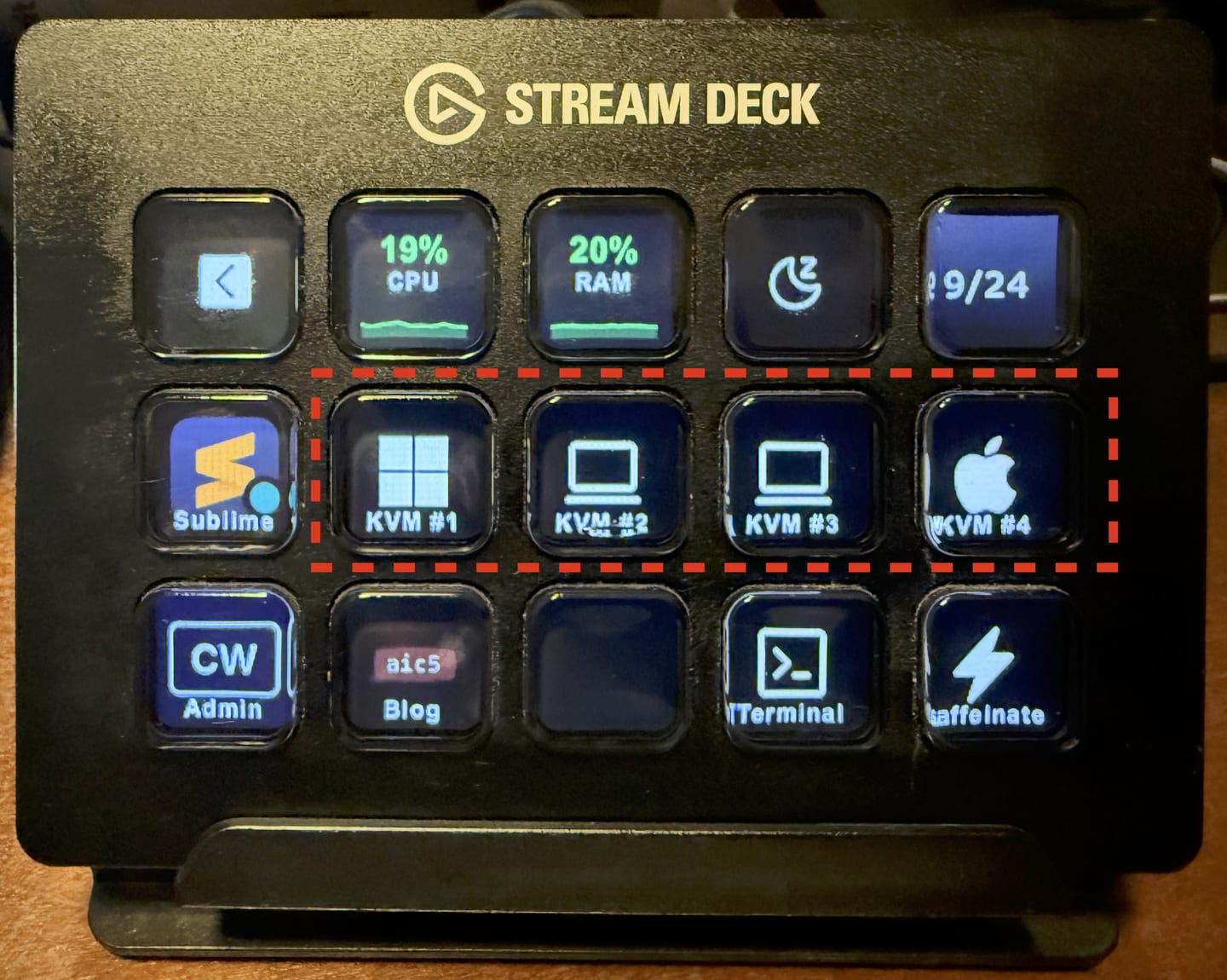
The four highlighted buttons select KVM inputs 1–4. I use custom icons here; the repository also includes a numbered set.
Here is how to reproduce it, from the parts to the first successful switch. The repository README and its linked guides are the reference for ongoing updates.
What You Are Building
A KVM shares a keyboard, video displays, and mouse between computers. KvmBridge controls the selection on the KVM; your video cables continue doing their existing job.
The control path has four steps:
- Stream Deck opens the Mac app for the computer you want.
- The app sends an HTTPS request, with an API key, to the Windows host.
- The Windows service sends a command through a USB-to-RS232 converter.
- The KVM switches both monitors to the selected input.
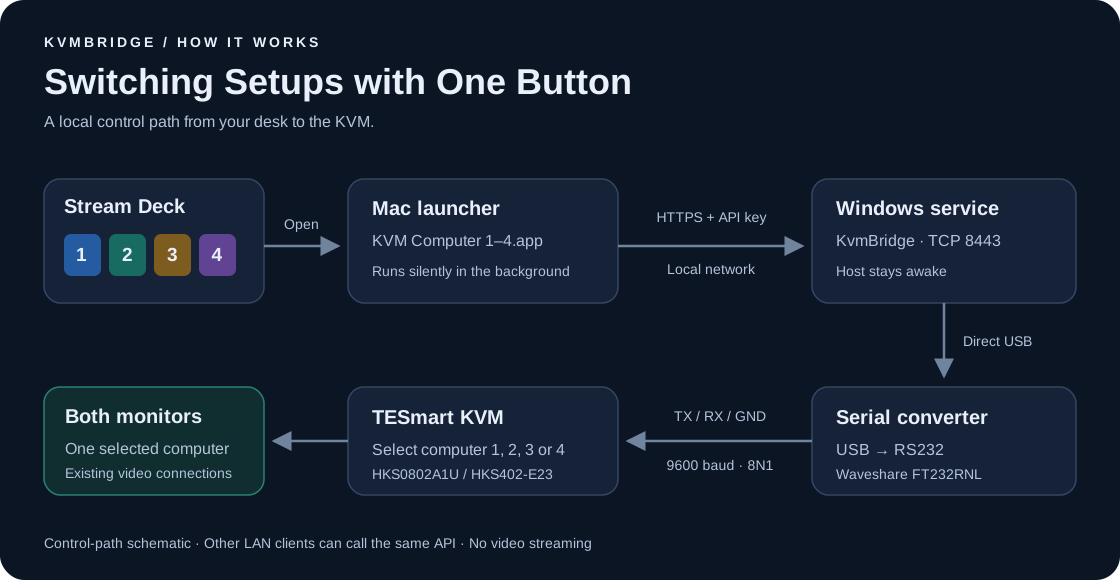
The Windows host is the bridge because it owns the serial connection. It can run the service without anyone signing in.
There is no need for a StreamDeck plugin. The supplied app work with its built-in System → Open action. You can also call the same API from a script or another computer on the LAN, or tell an AI agent to do it for you.
Parts and Requirements
My original build uses a TESmart HKS0802A1U, also listed as HKS402-E23, with HDMI connectors, and a Waveshare USB to RS232/485 converter using FT232RNL. The DisplayPort KVM linked below also works, although the detailed protocol notes in the repository describe the original HDMI build.
The Amazon links below are affiliate links. I may earn a commission at no additional cost to you. As an Amazon Associate I earn from qualifying purchases.
| Part | What it does |
|---|---|
| USB to RS232/485 serial converter | Connects the Windows host to the KVM’s serial control port. Use RS232 mode. |
| 3.5 mm pitch screw terminal block | Connects the serial cable to the KVM. Match the pitch, pole count, and mating connector. |
| TESmart four-port dual-monitor DisplayPort KVM | A working DisplayPort option. My original build uses the HDMI model named above. |
| Elgato Stream Deck | Provides the physical buttons. Optional if you only want script control. |
You also need a Windows x64 host with the FTDI VCP driver installed, a Mac for the supplied launchers, your existing KVM display and USB cables, and a trusted local network. Python 3 is needed for the Mac setup; the generated apps use built-in macOS tools afterward. The Windows release includes .NET, so it does not require a separate runtime installation.
Before adding anything, make sure the KVM already switches your computers and monitors correctly using its own controls.
1. Connect the Serial Adapter
This is the physical part of the project: a USB converter, a short cable, and a terminal block.
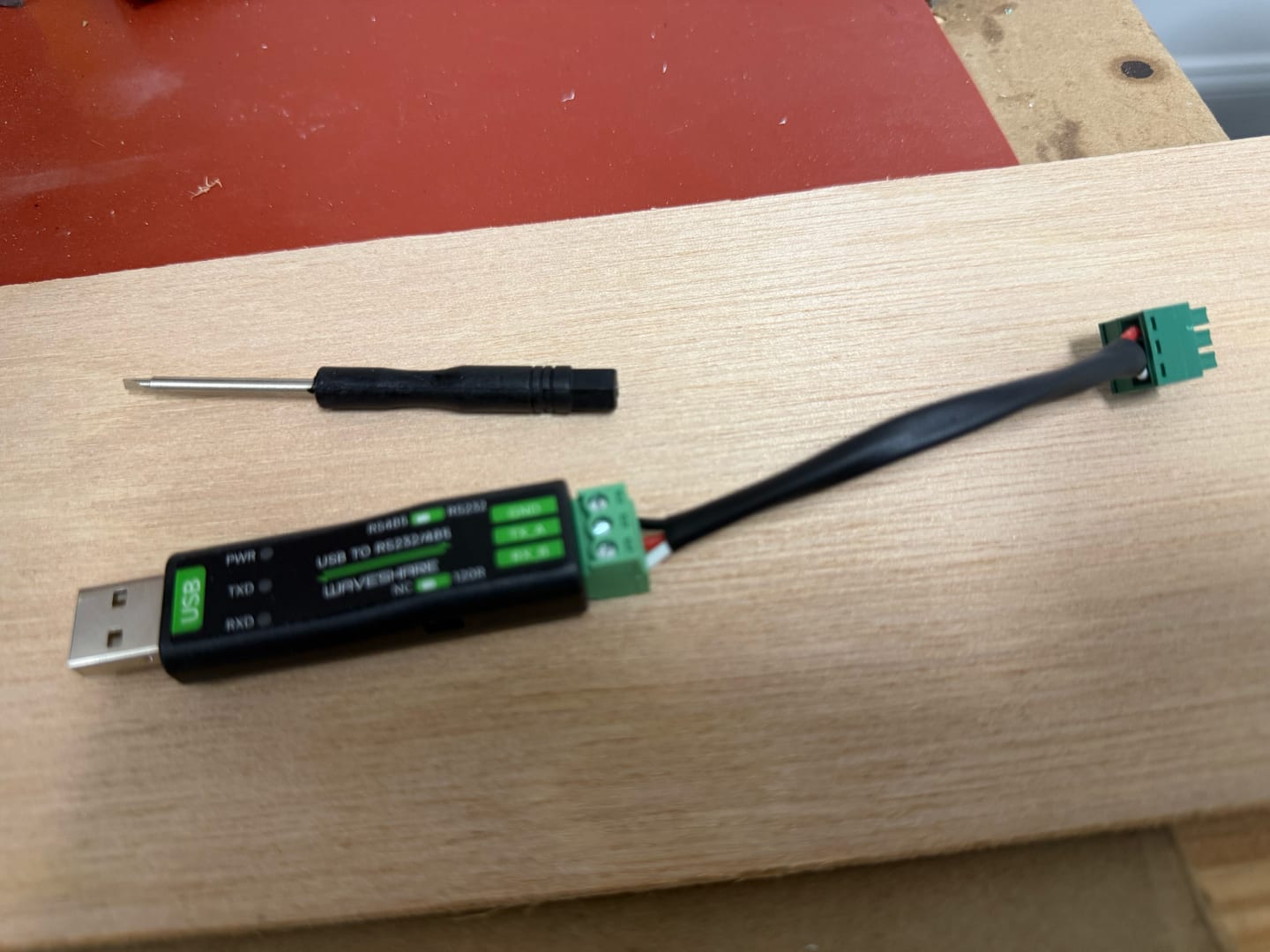
The assembled adapter and cable. Use the signal labels below to wire yours; the photo shows the assembly rather than a pinout.
Plug the converter directly into the Windows host. Avoid a USB port that changes owners when the KVM switches. The bridge needs to retain its serial connection regardless of which computer is on screen.
Set the converter’s switches to RS232 and NC, then connect:
| Converter signal | KVM signal |
|---|---|
| TX / A | RX |
| RX / B | TX |
| GND | GND |
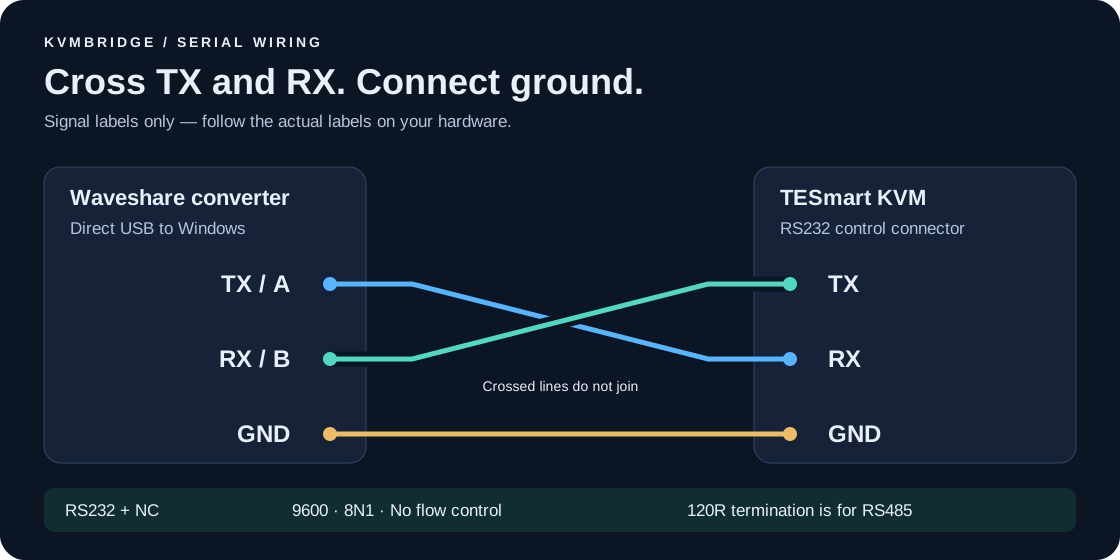
Transmit connects to receive. The signal names matter more than their position in a photo: follow the actual labels on your converter and KVM. The diagram is a signal map, not a drawing of the connector’s physical pin order.
The service uses 9600 baud, 8 data bits, no parity, one stop bit, and no flow control. The converter’s 120R termination setting is for RS485; this connection uses RS232 and NC.
2. Install the Windows Service
Download KvmBridge.exe from the project’s releases. If you prefer to build it, the development guide has the commands.
Open PowerShell as Administrator in the folder containing the executable and list the serial ports:
.\KvmBridge.exe ports
Identify your adapter’s COM port. If it appears as COM5, install with:
.\KvmBridge.exe install --port COM5
Replace COM5 with the port you actually found. The installer creates an automatic Windows service, HTTPS certificates, an API key, and a firewall rule for TCP port 8443. That rule permits local-subnet access on Private or Domain networks.
For an adapter whose COM number may change, use its FTDI serial number instead of a fixed port when installing:
.\KvmBridge.exe install --serial YOUR_FTDI_SERIAL
Choose one installation form. The serial-number option follows the identified adapter when Windows reassigns its COM number.
Use a stable LAN address, such as a DHCP reservation. If you want a particular hostname or IP address included in the certificate, add --host YOUR_HOST_OR_IP to the installation command. The Mac will need to reach that address, and it must match the certificate.
Now export the client configuration:
.\KvmBridge.exe client --output .\KvmBridge-Mac
This creates the folder you will transfer to the Mac. It contains an API key, so transfer it privately and keep it out of public repositories and cloud-synced folders. The server’s private key stays on Windows.
The Windows guide covers service maintenance, address changes, and certificate renewal. For the first setup, the essentials are a reachable address, a trusted Private/Domain network, and a Windows host that stays awake.
3. Build the Mac Buttons
On the Mac, download the repository’s source archive or clone it. Open Terminal in the repository’s root folder. With Python 3 installed, run:
python3 mac/build.py --client /path/to/KvmBridge-Mac --output "$HOME/Applications/KvmBridge"
Replace /path/to/KvmBridge-Mac with the location of the client folder exported from Windows. Quote that path if it contains spaces.
The builder creates four apps named KVM Computer 1.app through KVM Computer 4.app, plus shell controls and a status command. Credentials are stored separately in ~/Library/Application Support/KvmBridge, with private permissions.
Allow Local Network access when macOS asks. The .app launchers run without a Terminal window or Dock icon and remain in the background to handle later button presses.
For prebuilt apps, or when replacing an existing installation, follow the Mac guide. It includes the configure-only option and explains how to replace apps and credentials. The Windows executable is unsigned; the Mac apps are locally signed, not notarized.
4. Test a Switch Before Adding Stream Deck
Check the connection from Terminal on the Mac:
"$HOME/Applications/KvmBridge/status.command"
The response should include "serialConnected": true. That tells you the service has opened the serial adapter. It does not, by itself, prove the KVM is powered on or receiving commands.
Open KVM Computer 1.app in ~/Applications/KvmBridge. Both monitors should switch to the computer attached to KVM input 1. Run the status command again to inspect the observed selection.
The numbers refer to physical KVM inputs. Input 1 does not inherently mean Windows, and input 4 does not inherently mean Mac. Those are just how I labeled my buttons.
It is normal for the selection to be unknown after the service starts or reconnects. The service learns the selected input when the KVM sends a channel event. It also observes events from front-panel changes. There is no verified independent command to ask the KVM for its current selection.
Give the displays time to negotiate their video signal. A serial confirmation can arrive before the picture does.
5. Put the Controls on Stream Deck
Once the app switches the KVM correctly, the Stream Deck setup is straightforward:
- Drag System → Open onto an empty key in the Mac Stream Deck editor.
- Set App / File to your installed
KVM Computer 1.app. - Give the key a useful title, such as your computer’s name or
KVM #1. - Choose an icon. The repository includes
streamdeck/icons/computer-1.png. - Repeat for inputs 2–4 with the matching apps and icons.

Use the .app launchers. Opening a .command file works through Terminal, which is usually not what you want for a desk button. The icons are labels for the inputs; they do not change to show which computer is currently selected.
You can put these buttons on a page or inside a folder. The Stream Deck guide also explains profile backups. A profile export saves the button configuration, so keep track of the separate launcher apps and client configuration when moving to another Mac.
If Something Does Not Work
Check one part of the chain at a time. Get the serial adapter visible in Windows, then the Mac talking to Windows, then one app switching the KVM, and finally the Stream Deck button.
| Symptom | First things to check |
|---|---|
| No adapter in the port list | FTDI VCP driver, direct USB connection, and Device Manager → Ports. |
serialConnected is false |
The configured COM port or FTDI serial number, and whether the adapter is connected. |
| Serial port is connected, but the KVM does not switch | KVM power, crossed TX/RX, shared GND, and the converter’s RS232 / NC settings. |
| The Mac cannot reach the service | Windows is awake, the address is correct, the network profile permits the firewall rule, and macOS Local Network access is allowed. |
| Certificate verification fails | The client has the correct exported CA and uses an address covered by the server certificate. Do not disable verification with curl -k. |
| The app works but the button does not | The Stream Deck action is System → Open and points to the correct .app. |
The Mac documentation lists the launcher logs, including request timing and errors. A timeout does not necessarily mean the KVM failed to switch: the command may have arrived without a timely confirmation. KvmBridge avoids automatically replaying commands after that kind of ambiguous failure.
Beyond the Buttons
Stream Deck is one way to use the bridge. The HTTPS API also accepts selection requests from other local clients. For example, using the exported client files, this selects computer 1:
curl --fail --show-error --max-time 10 \
  --cacert /path/to/KvmBridge-Mac/kvmbridge-ca.pem \
  --config /path/to/KvmBridge-Mac/client.conf \
  -H 'Content-Type: application/json' \
  -X PUT -d '{"computer":1}' \
  https://192.0.2.10:8443/api/kvm/selection
Replace the example paths and IP address with yours. The API key comes from the configuration file, and the exported certificate lets curl verify the Windows service.
The project’s scope is deliberately small: select an input, switch both monitors, and report the latest observed channel event. It does not control split-display routing, independent keyboard/USB focus, or EDID settings. Status is an observation, not proof of a live picture on the monitors.
The code, setup guides, icons, and tests are available on GitHub under the MIT license. If you adapt it to another KVM, documenting the exact model and serial behavior would be useful.